I want to display warnings when alarms occur.
This section explains how to display a pop-up window containing warning details when an alarm occurs.
Creating the pop-up window
1. Pop-up windows displayed on top of the normal screen are called global windows on the VT.
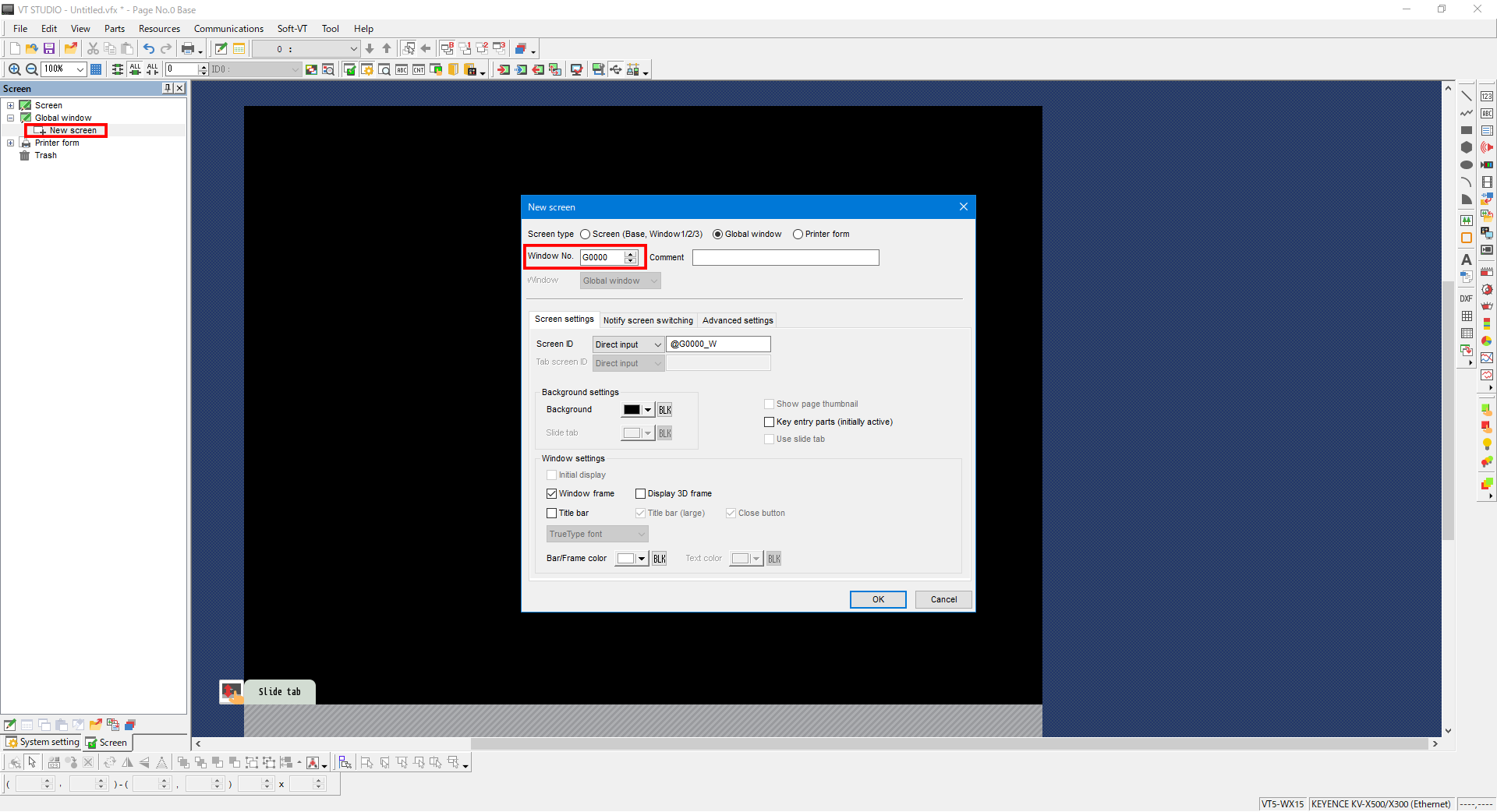
Click “Global window” -> “New screen”. The [New screen] dialog box is displayed. Specify the Window No., and then click [OK].
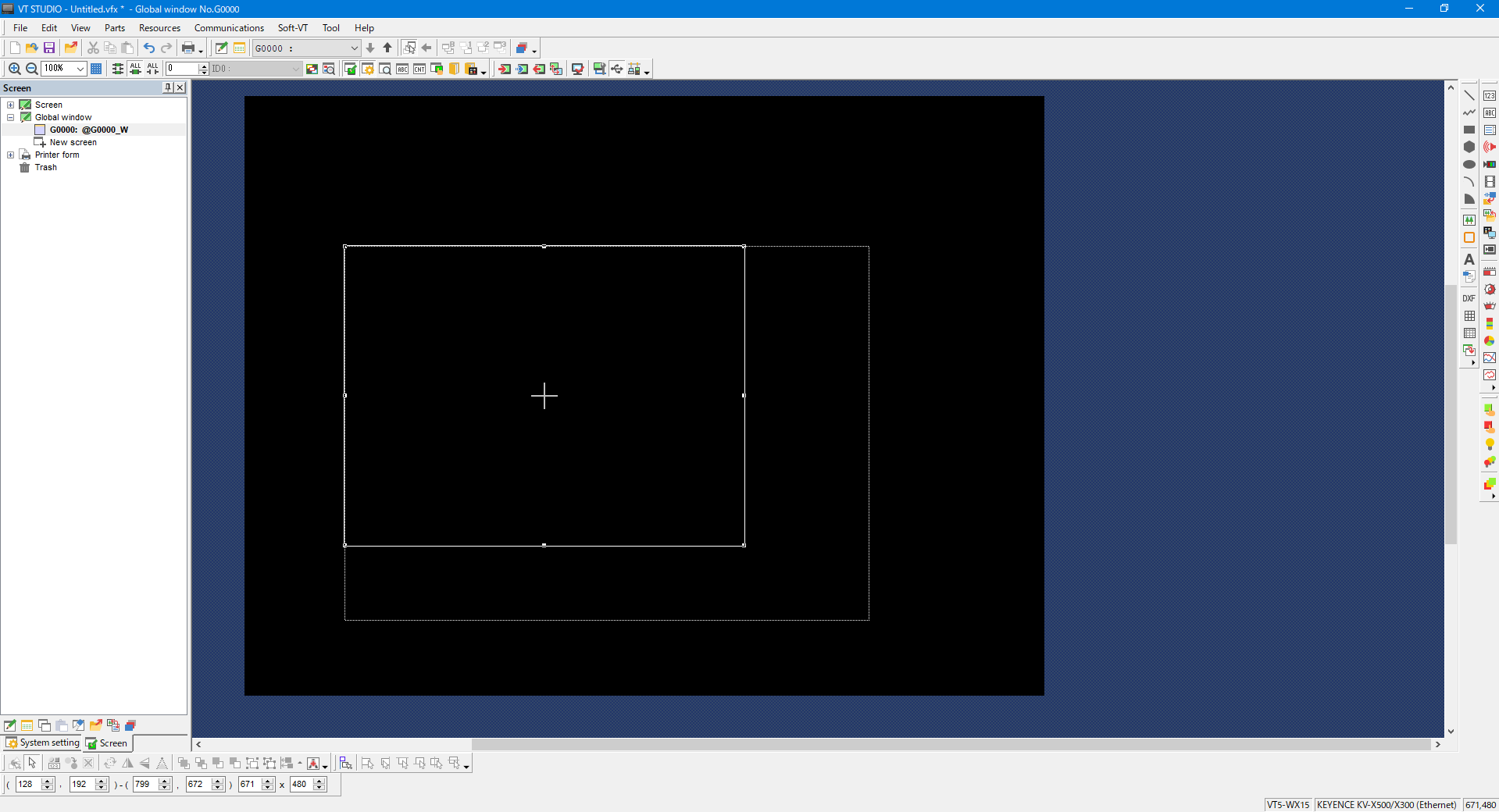
2. The global window (pop-up) editing screen is displayed. The white frame indicates the size and display position of the global window.
Adjust this size and position with the mouse.
3. Create a button for closing the global window.
From the menu, select [Parts] -> [Switches/Lamps] -> [Switch], and then place a switch on the global window.
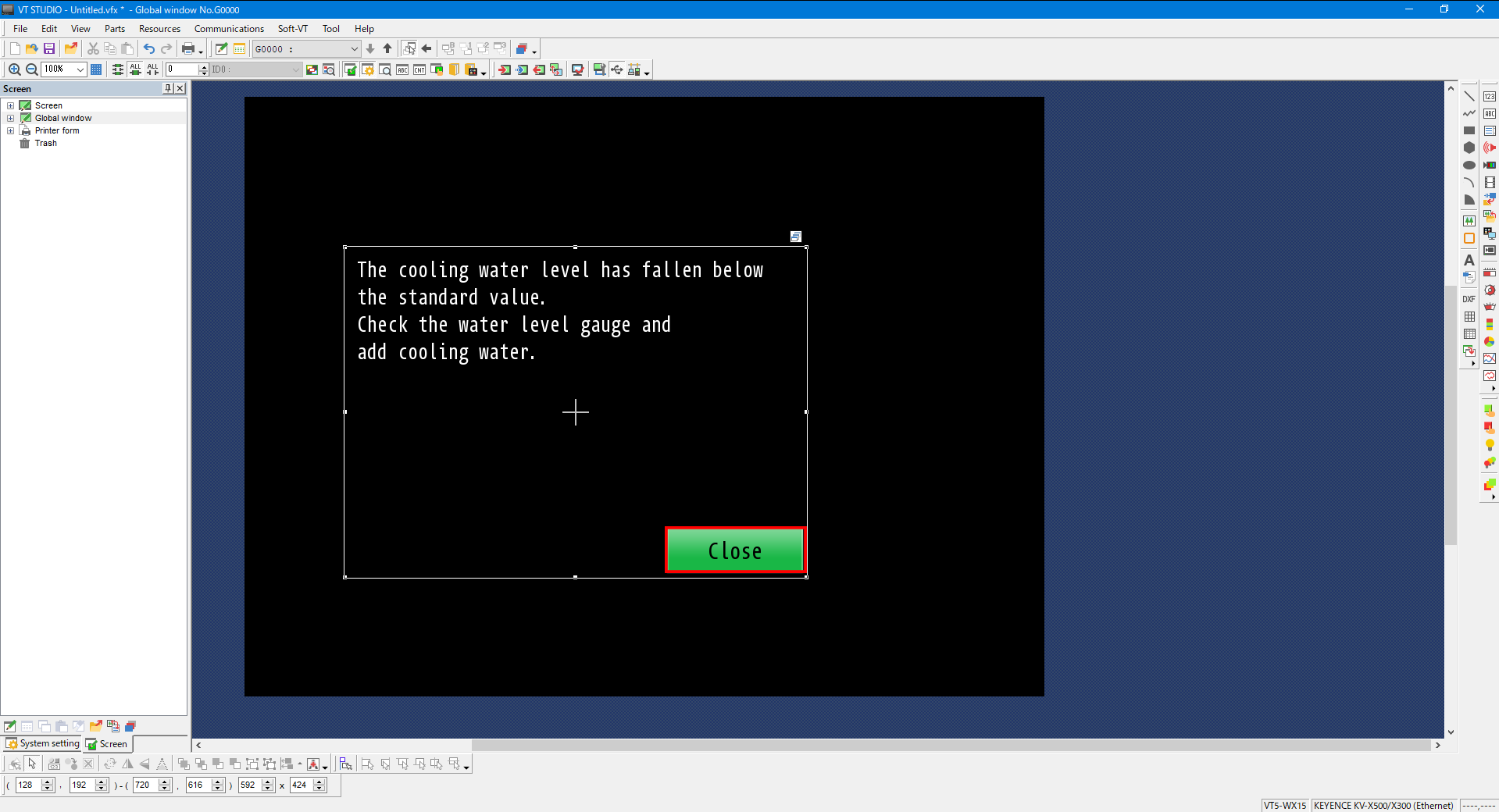
4. Set the placed switch as shown below. With these settings, tapping this switch will close the displayed global window.
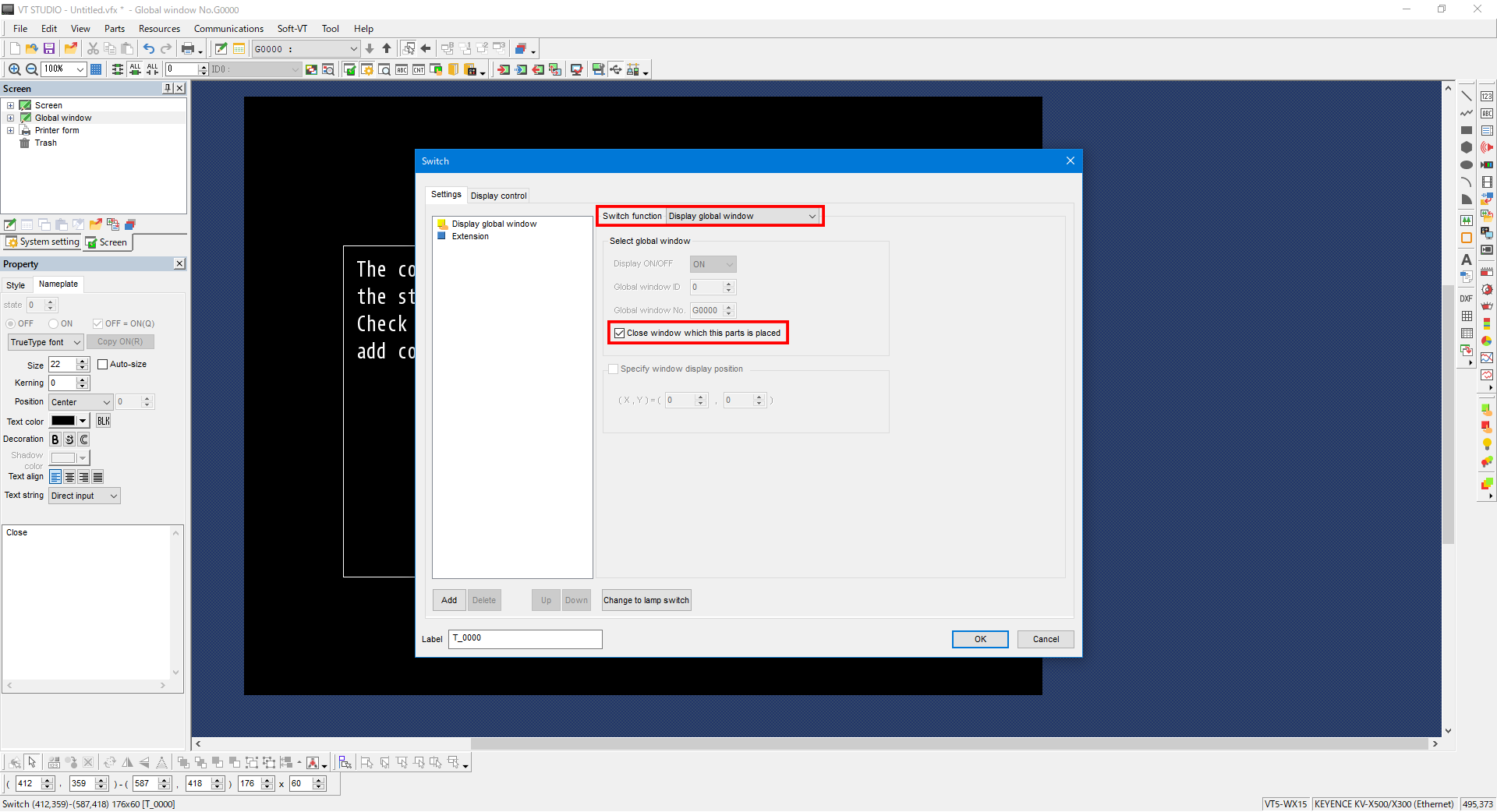
Settings for displaying the pop-up window
5. To display the global window when an alarm occurs, use the VT’s global function control.
From the menu, select [Resources] -> [Global function control].
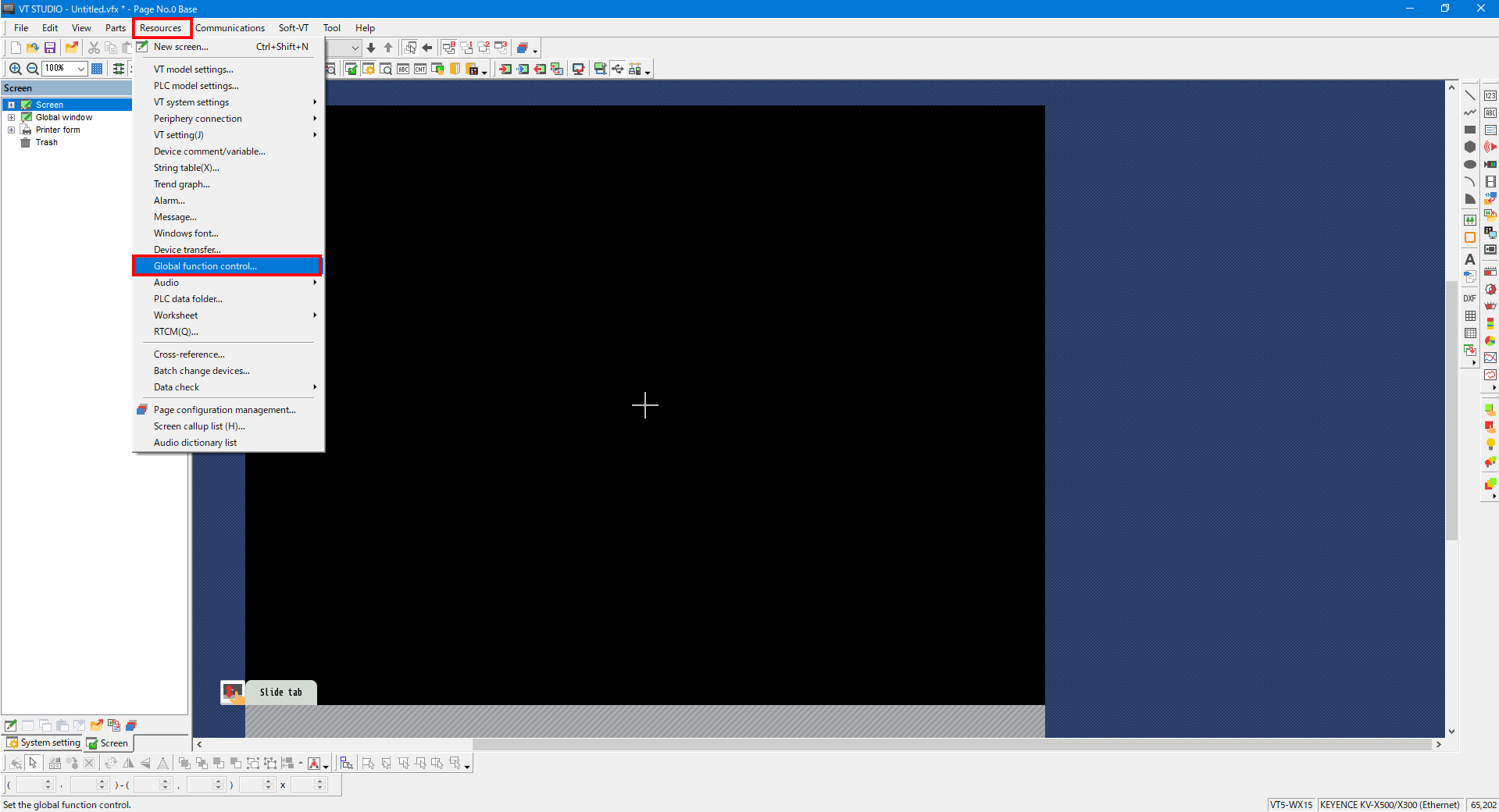
6. Click [Add], and then double-click the added function.
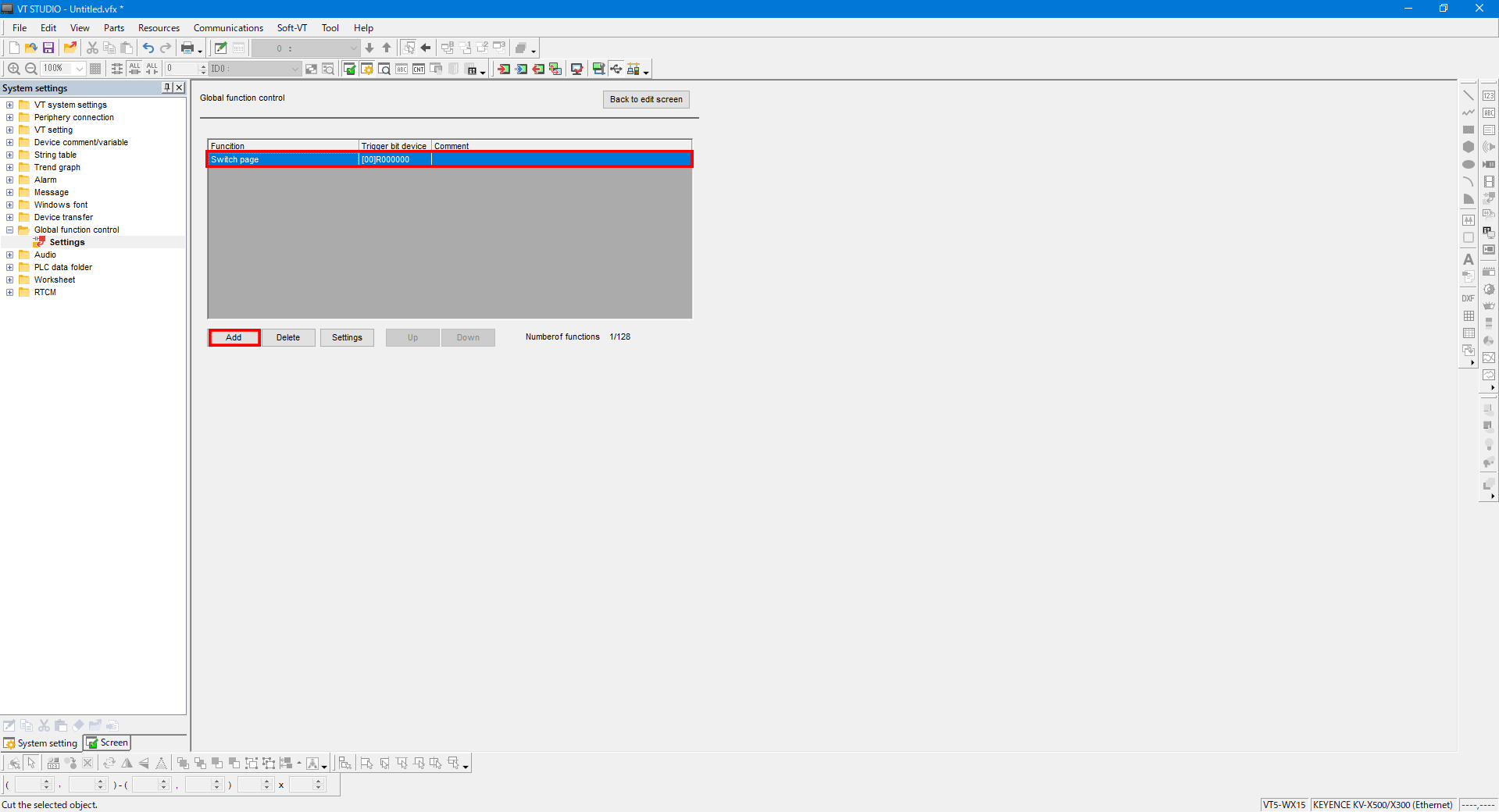
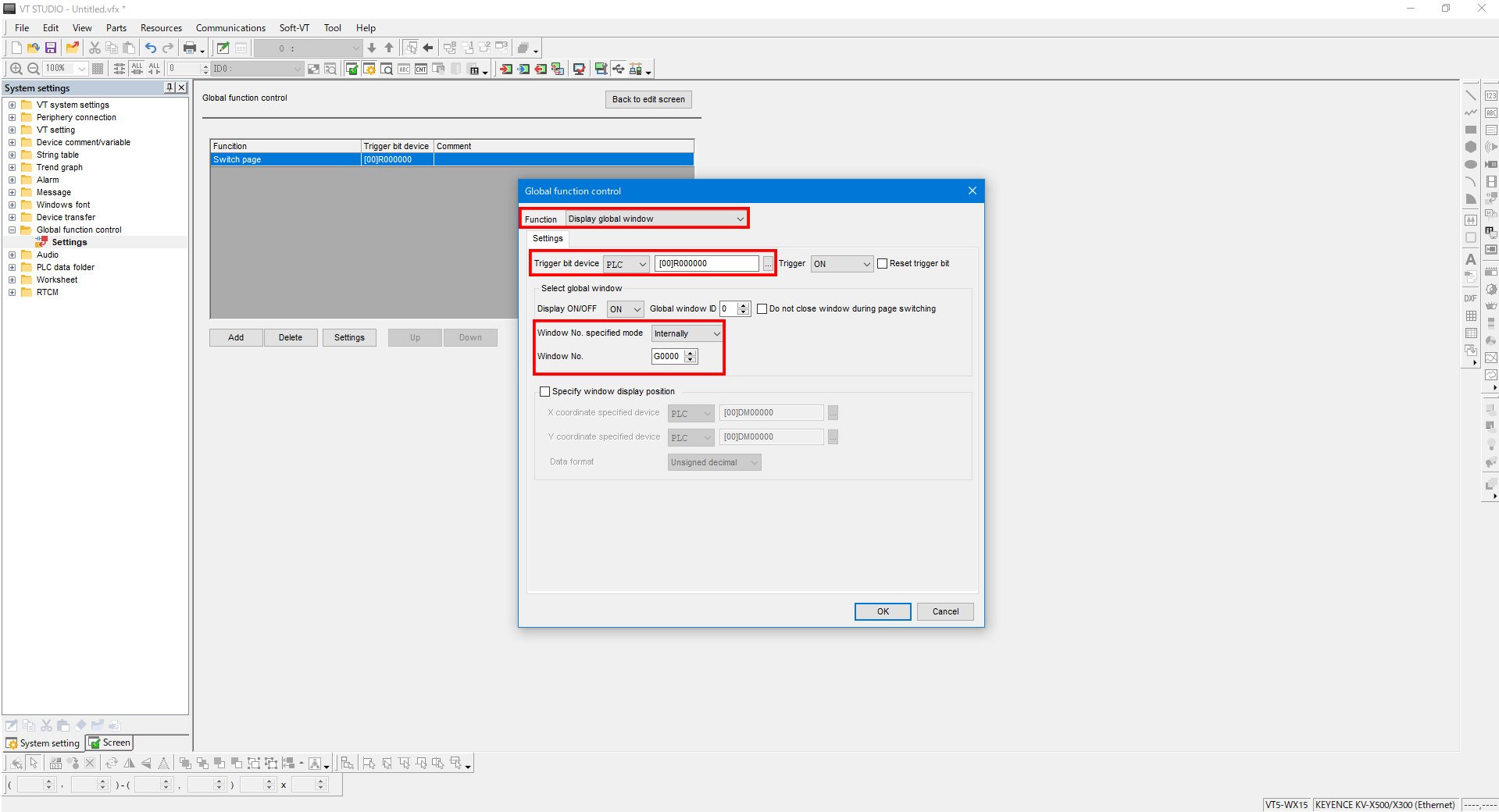
7. The example settings in the following figure are for displaying global window number 0 when R000000 is set to ON.
- *Set “Window No. specified mode” to “externally” to make it possible to use PLC devices to specify the number of the global window to display.